

Android Installation Guidelines
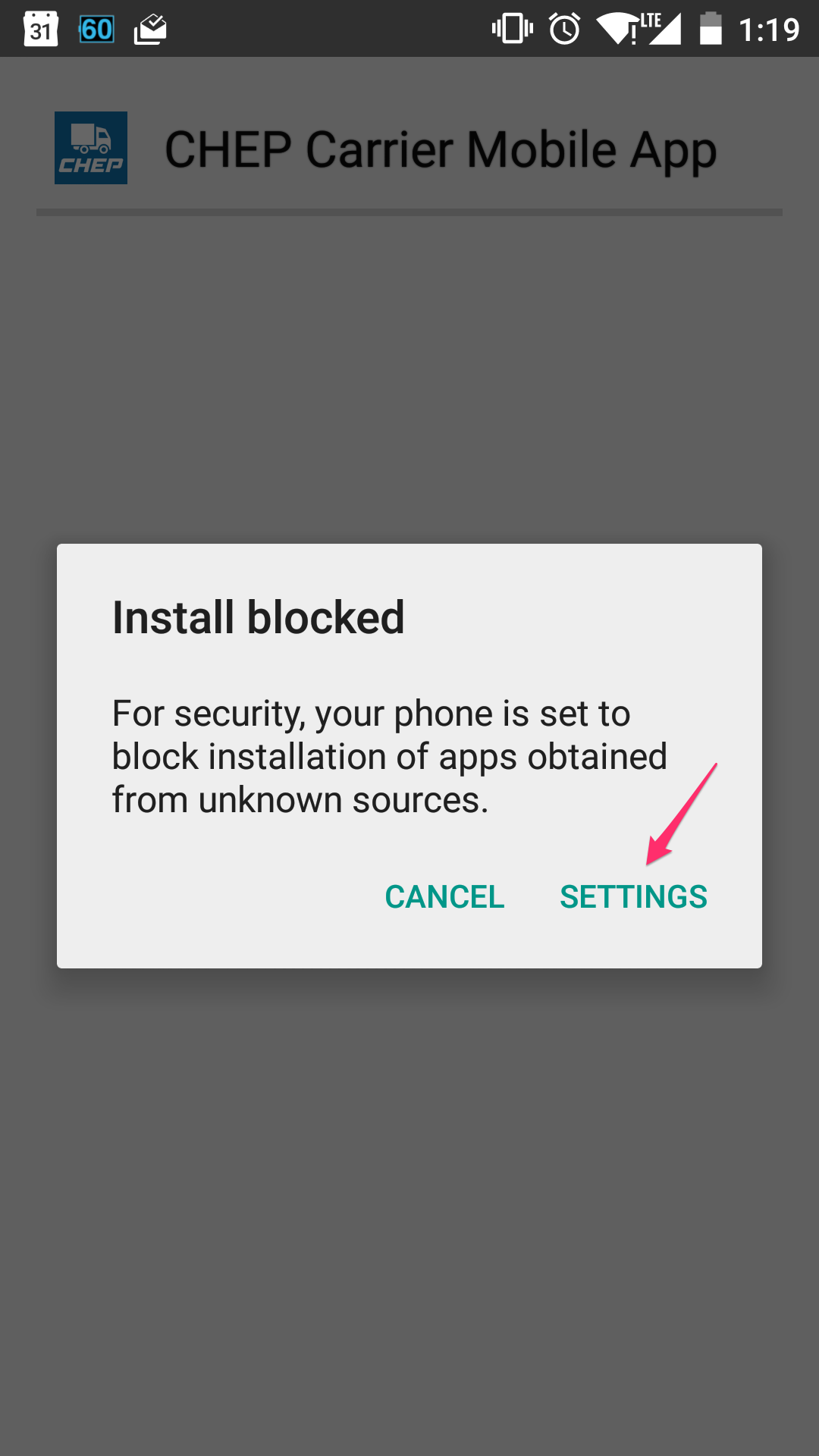
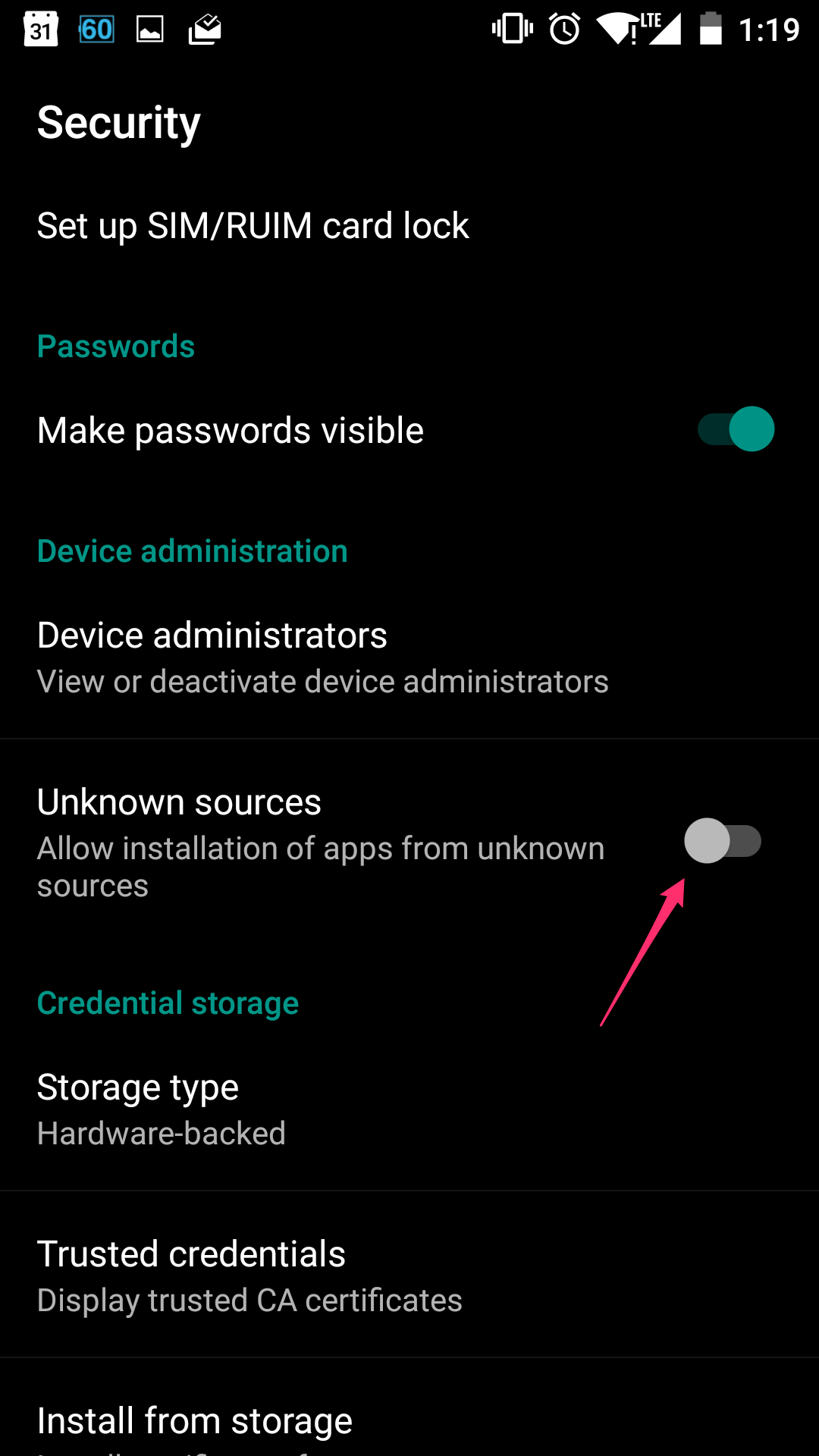
First time you will install the app, you may see the "Install blocked" popup if you didn't allowed to install applications from unknonw sources. In that case, click the "Settings" button (or open your General Settings and move to the "Security" configuration screen)
On Security configuration screen, enable "Unknown sources" settings on your device
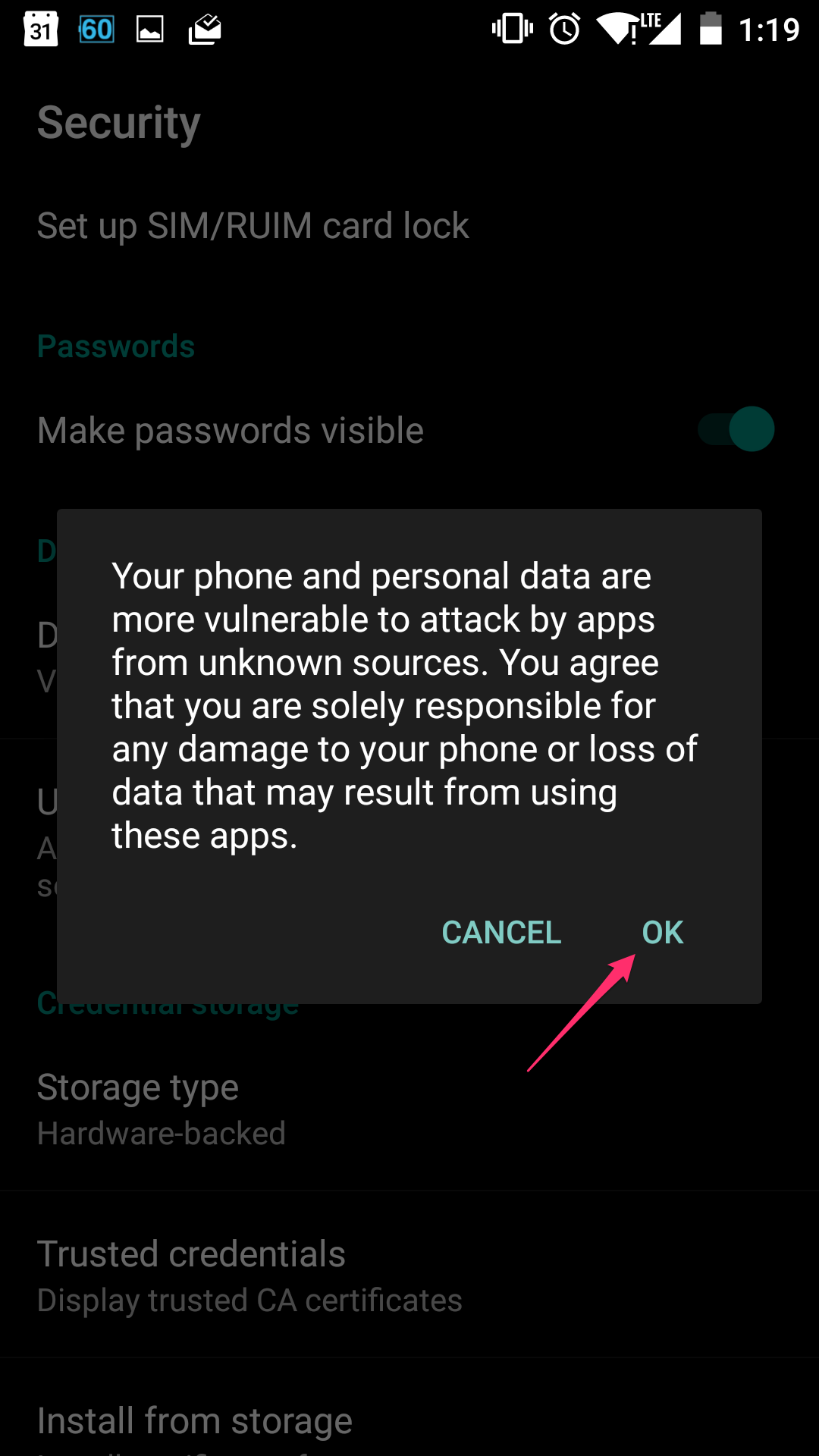
Confirm this settings in order to be able to install the CHEP CMA apk file
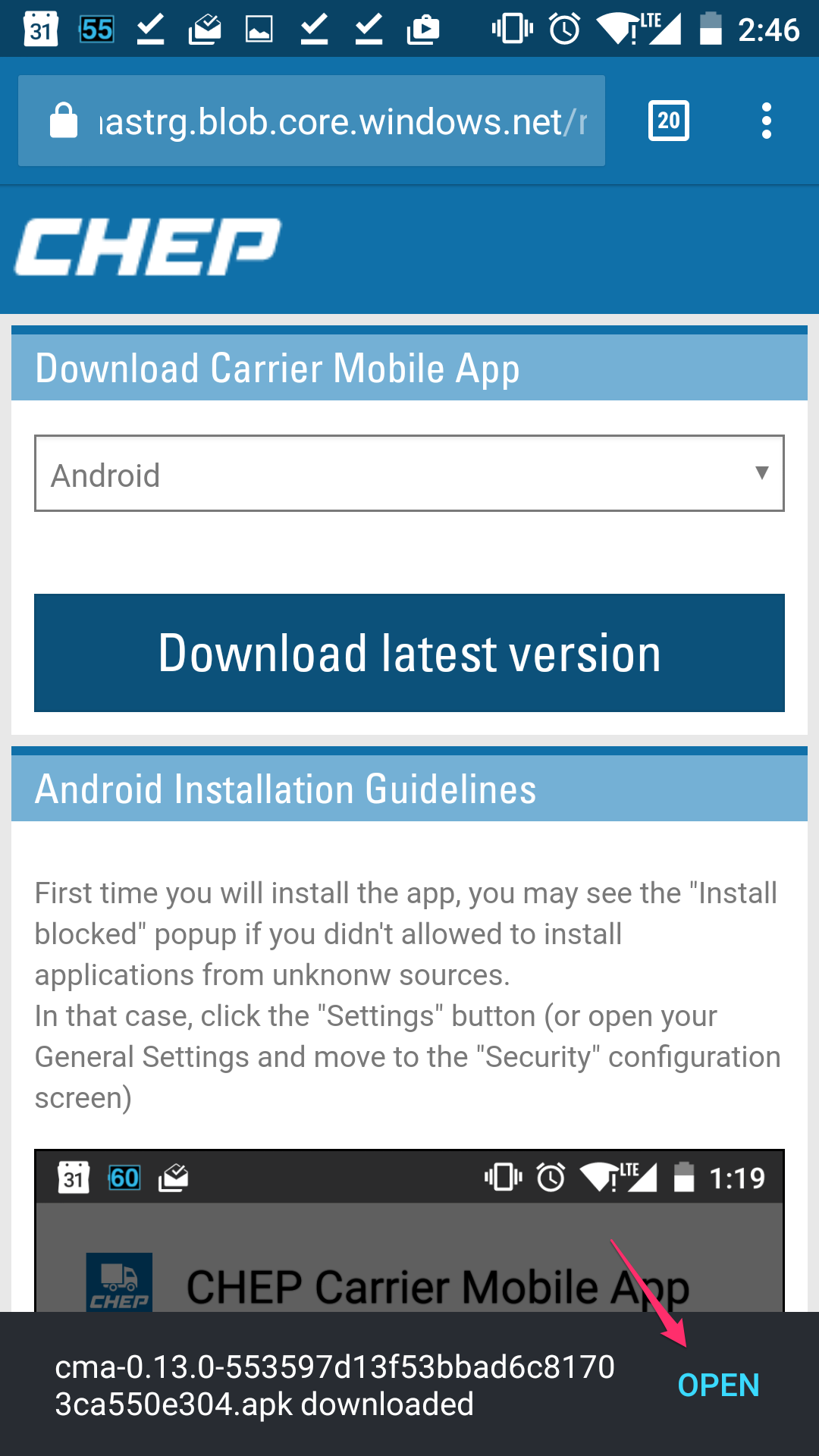
Localize your downloaded APK file in your download folder (or download it again), and open it.
That time, you will be able to install it normally.
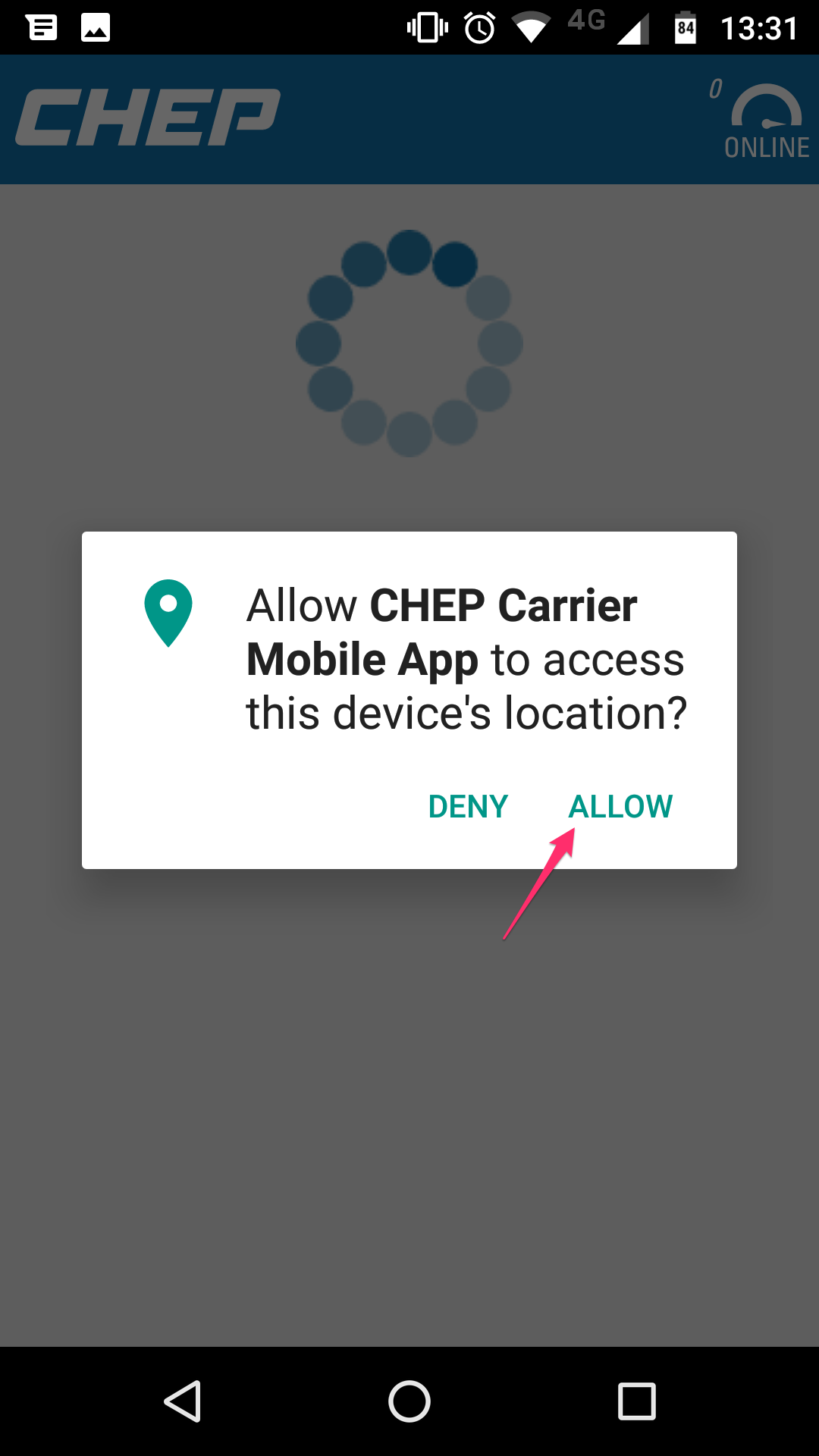
At first execution time, the app will ask for your location.
Carrier Mobile App has some geofencing and tracking features which requires to acquire your position.
If you don't accept it, the app may have undesired behaviour when checking in at specific locations.
Thanks for your patience
Thanks for your patience, and see you in the Carrier Mobile Application.
iOS Installation Guidelines
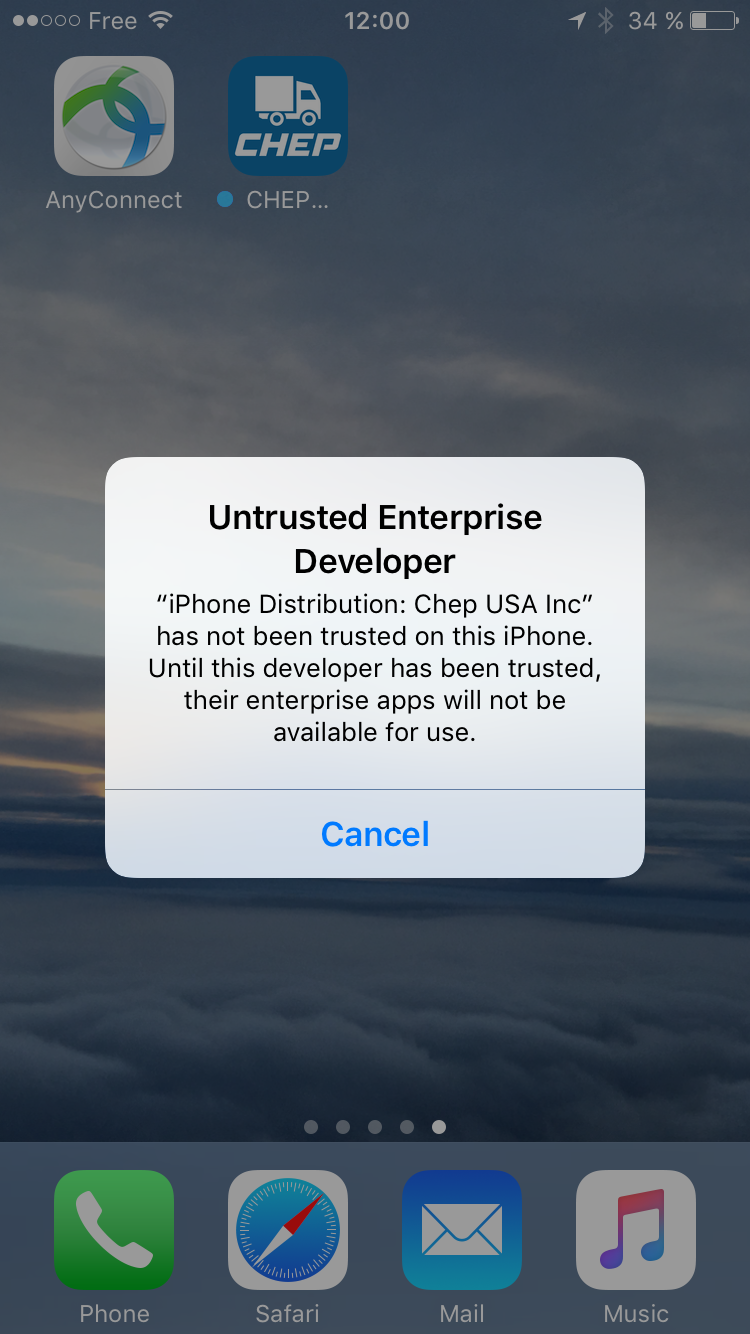
First time your will install the app, you may see the "Untrusted Enterprise Developer" popup
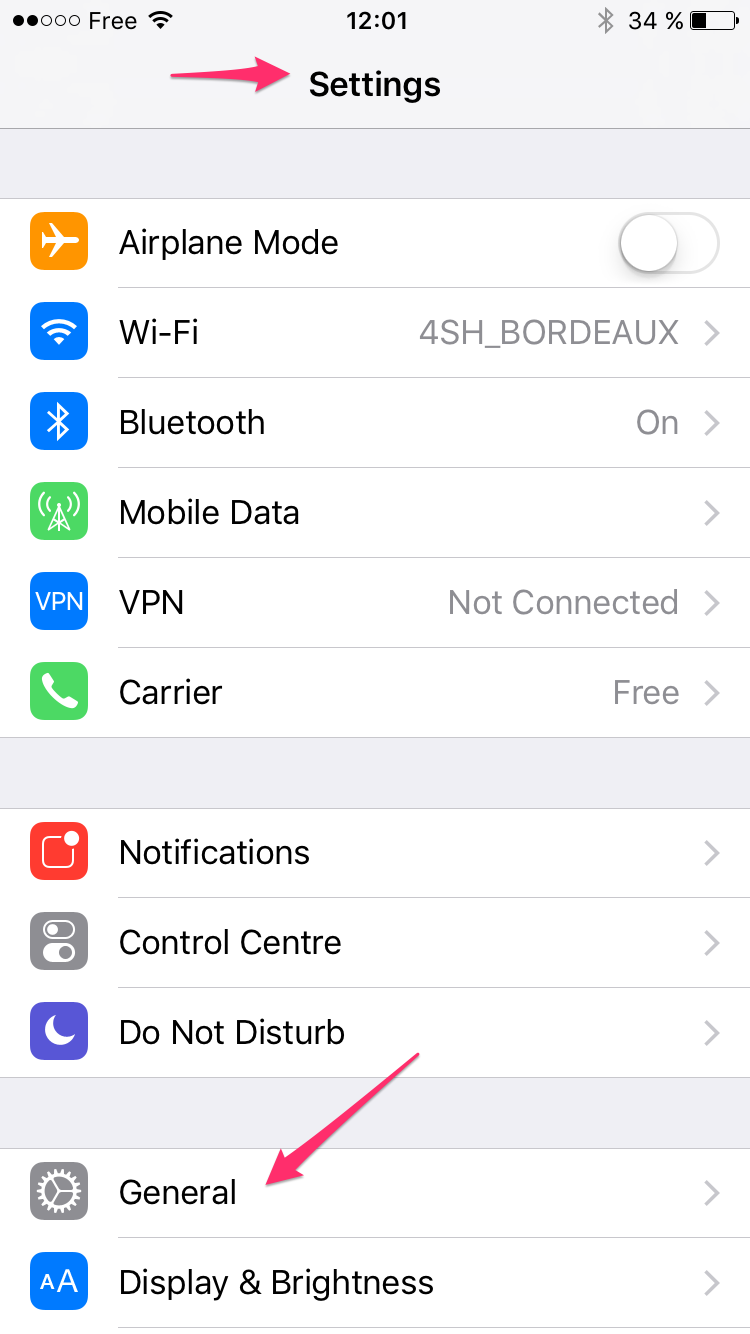
If this is the case, open your General Settings and click the "General" entry
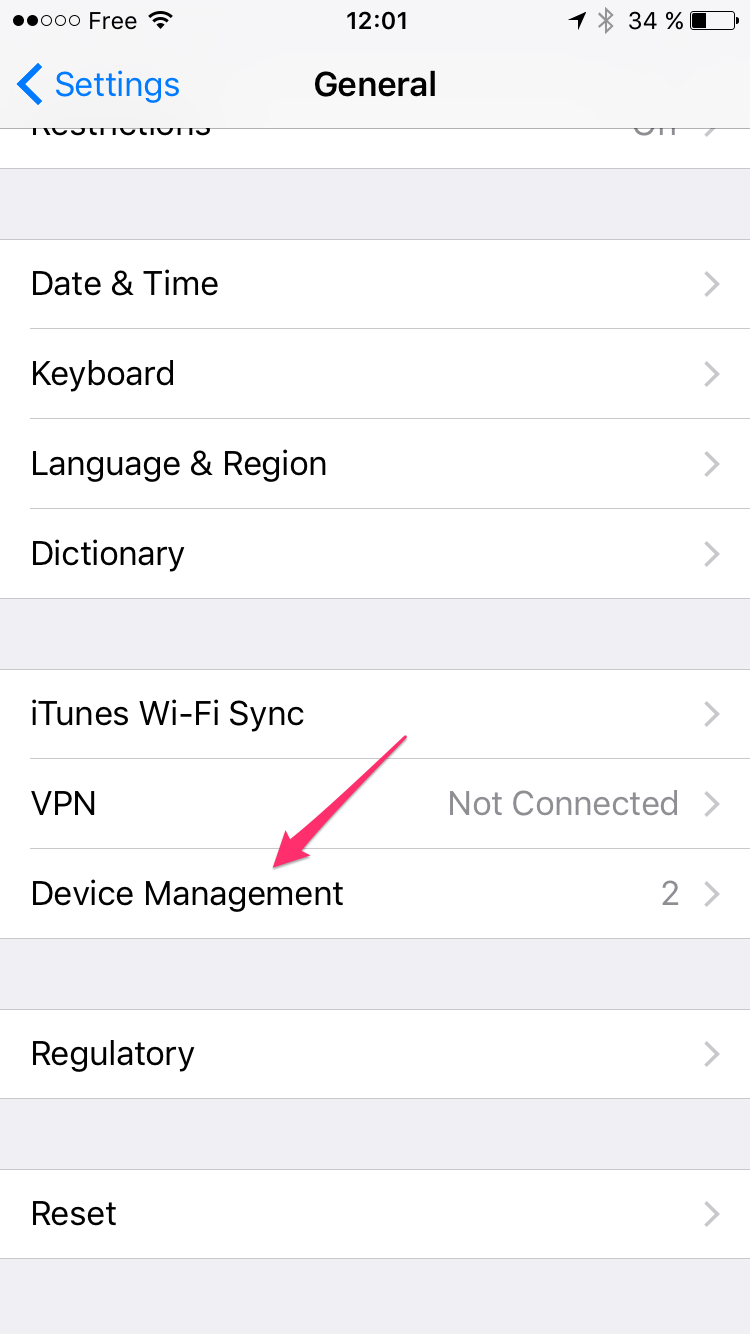
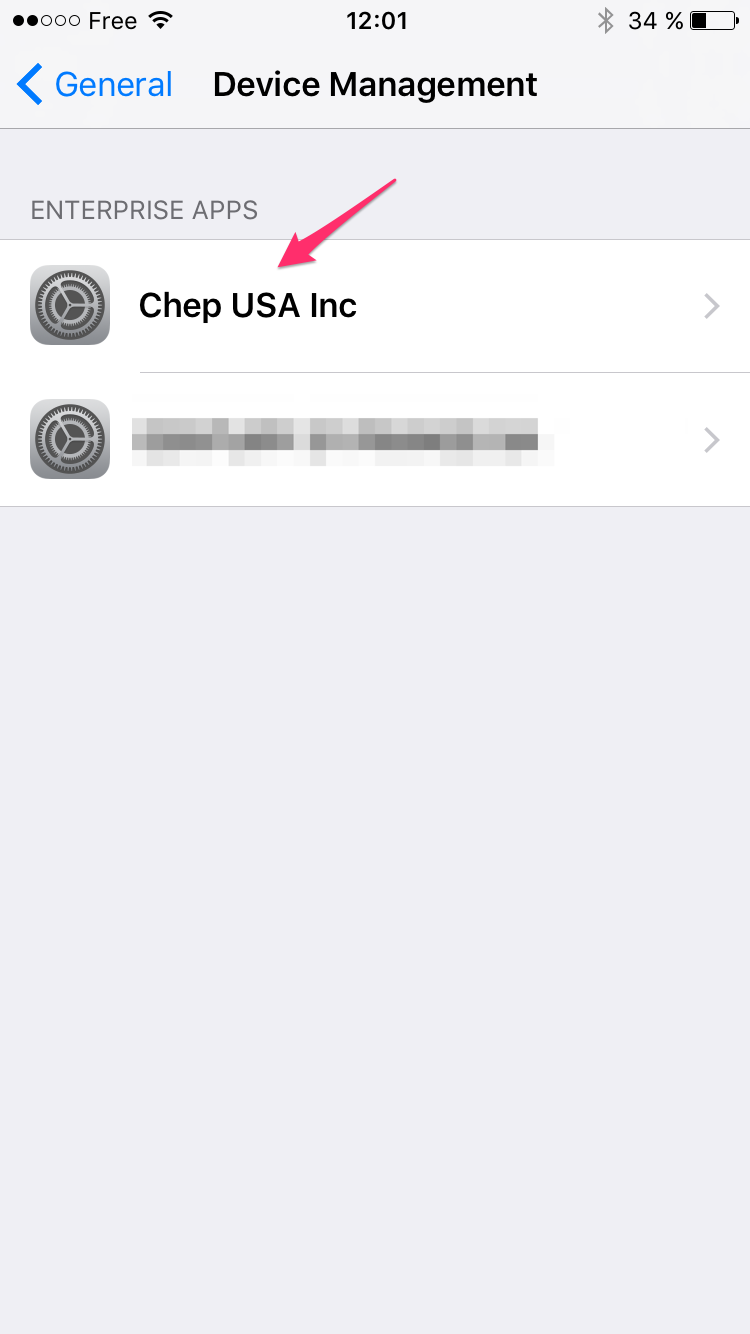
Then open the "Device Management" section
Here, you will see "CHEP USA Inc" in the Enterprises you need to trust to enable CMA execution. Click it.
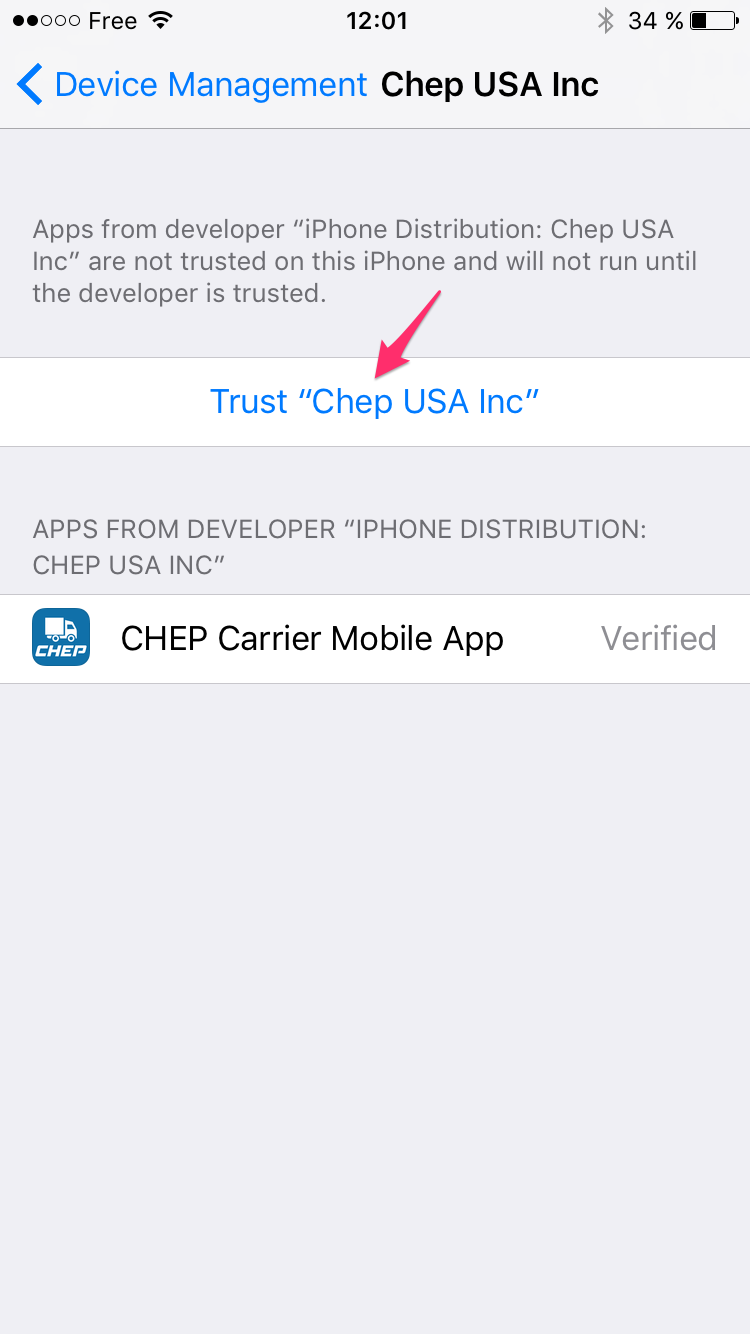
Click "Trust CHEP USA Inc" entry
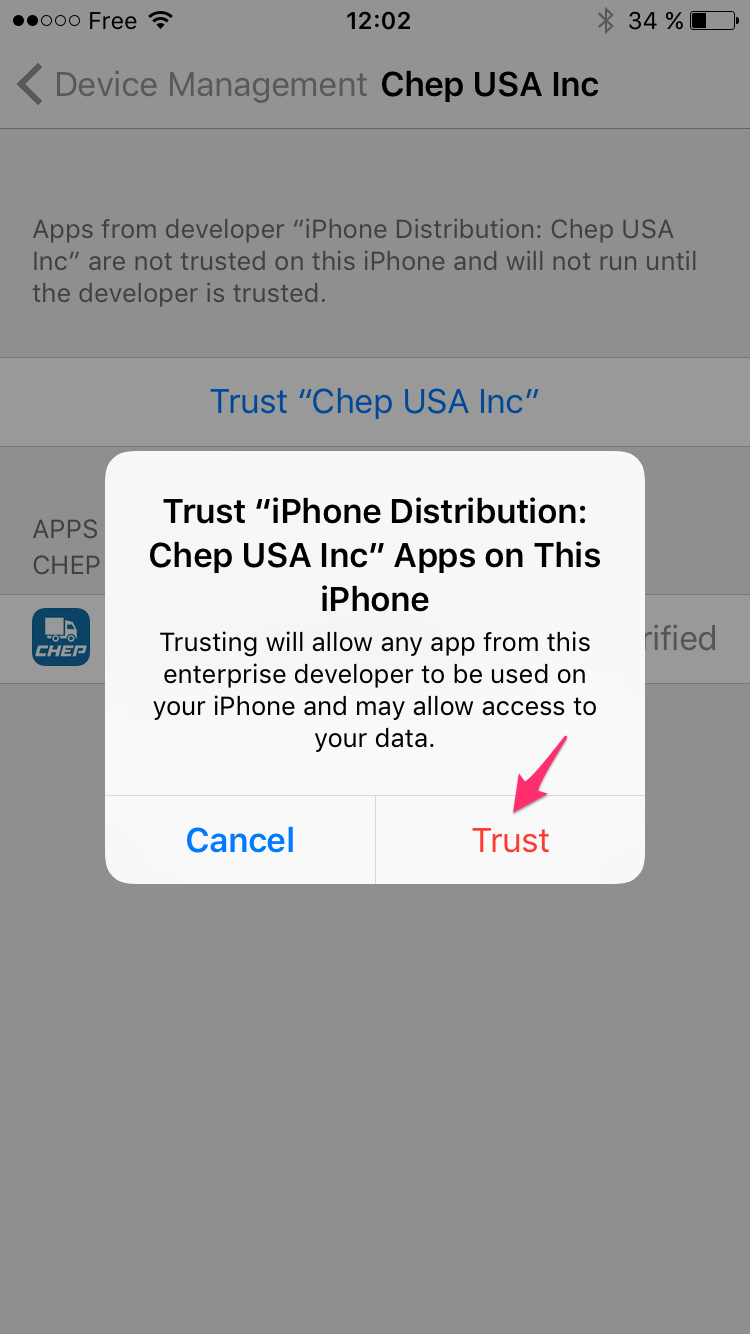
Confirm by clicking the "Trust" button
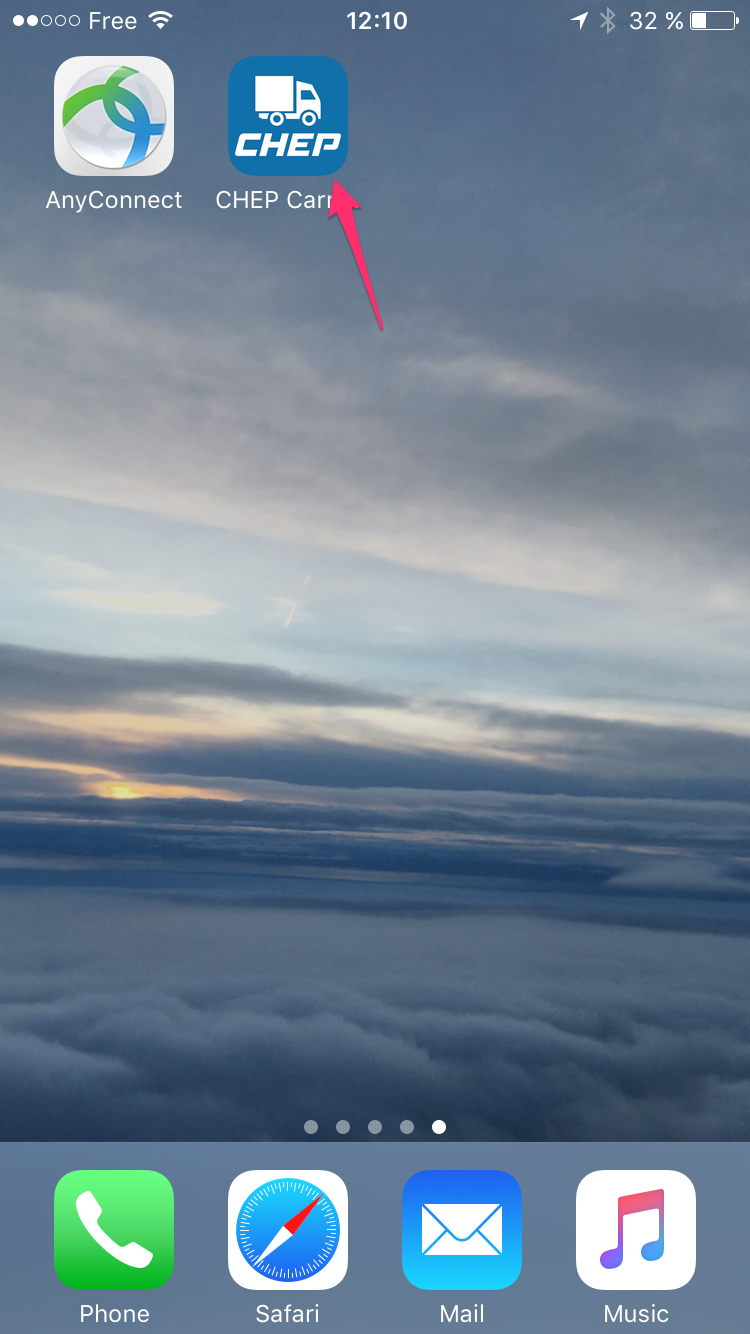
Come back to your home screen and run the App, you should not have the warning anymore
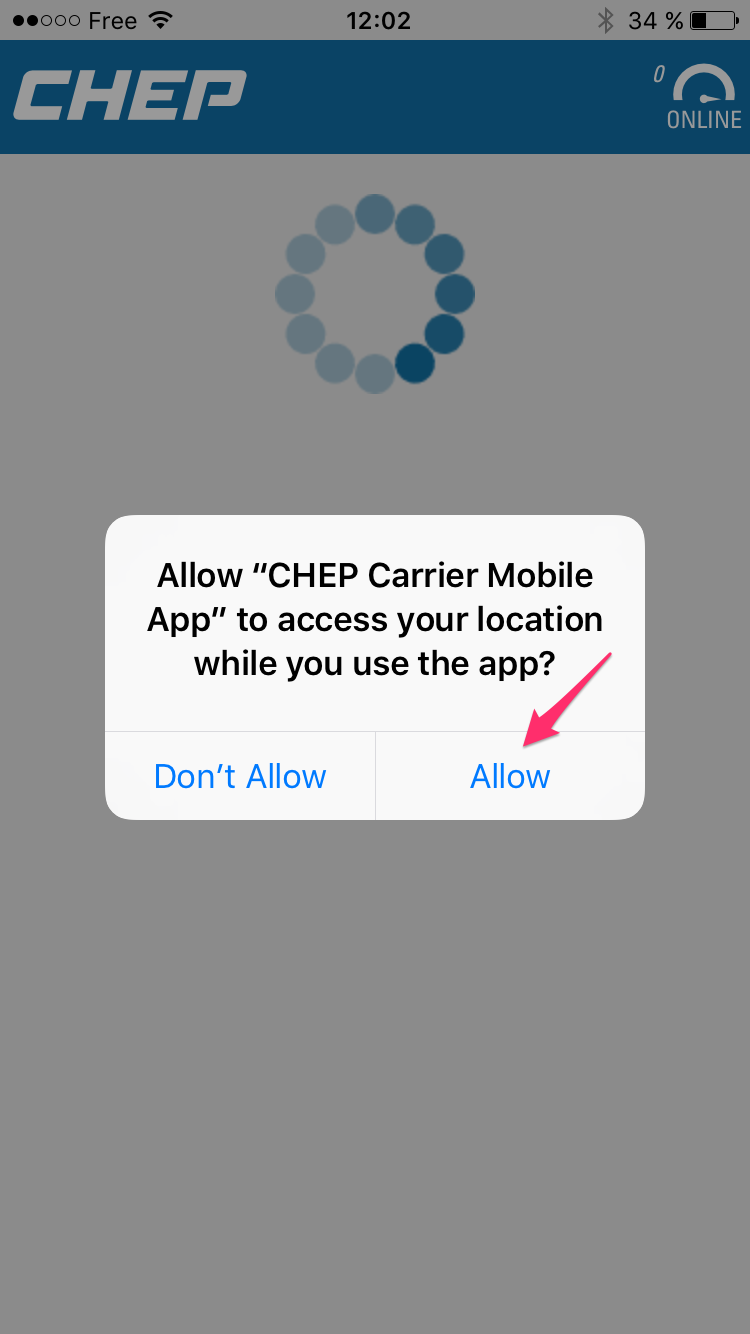
At first execution time, the app will ask for your location. Carrier Mobile App has some geofencing and tracking features which requires to acquire your position. If you don't accept it, the app may have undesired behaviour when checking in at specific locations.
Thanks for your patience
Thanks for your patience, and see you in the Carrier Mobile Application.